
Glare: fix the room before you buy a filter

Glare on monitors can be a persistent problem, affecting comfort and productivity. Before investing in privacy filters, it’s essential to assess your workspace environment, especially window placement and monitor features. Understanding how different elements in your office interact with one another can make a significant difference in your viewing experience.
By taking a few steps to optimize your setup, you may find that you can eliminate glare without needing additional accessories. This article explores various strategies for managing glare, allowing you to create a more comfortable workspace.
Assess Your Window Position
The first step in managing glare is evaluating the position of windows in your workspace. If sunlight directly hits your screen, it may cause significant glare. Observing the path of the sun throughout the day can help you determine how it affects your workspace.
If possible, arrange your desk so that windows are either to the side or behind your monitor. This simple adjustment can drastically reduce direct sunlight on your screen, minimizing the need for glare-reducing products.
Choose the Right Monitor Panel
Monitors come with different panel finishes that can greatly influence glare levels. Matte panels are designed to diffuse light, reducing reflections and glare. On the other hand, glossy panels tend to enhance color but may also amplify glare from light sources.
If you are in a bright room, consider opting for a matte screen. While glossy panels can offer vibrant visuals, their reflective nature can be a disadvantage in well-lit environments.
Utilize Monitor Light Bars
Monitor light bars can be an effective solution for reducing glare while enhancing visibility. These devices illuminate your workspace without creating harsh reflections on the screen, improving overall comfort during long work hours.
Positioning a light bar above or behind your monitor can provide adequate lighting for your keyboard and paperwork without interfering with your display. This allows for a balanced, glare-free viewing experience.
Adjust Monitor Position and Angle
Another practical approach to managing glare is to adjust the position and angle of your monitor. The height and tilt of your monitor can significantly affect how light interacts with the screen.
<pA slight tilt away from the light source can help minimize reflections, while raising or lowering the monitor to eye level can also improve comfort. Take a moment to experiment with these adjustments to find the most comfortable setup.
Consider Window Treatments
Window treatments can play a vital role in controlling glare in your workspace. Blinds, shades, or curtains can be adjusted to filter natural light and reduce glare without sacrificing brightness.
- Roller shades provide a sleek look while allowing for light control.
- Vertical blinds can be adjusted to block light at various angles.
- Sheer curtains diffuse light, creating a softer ambiance.
Choosing the right window treatment can help you maintain a pleasant working environment, making it easier to focus on your tasks without distractions from glare.
Reorganize Your Desk Accessories
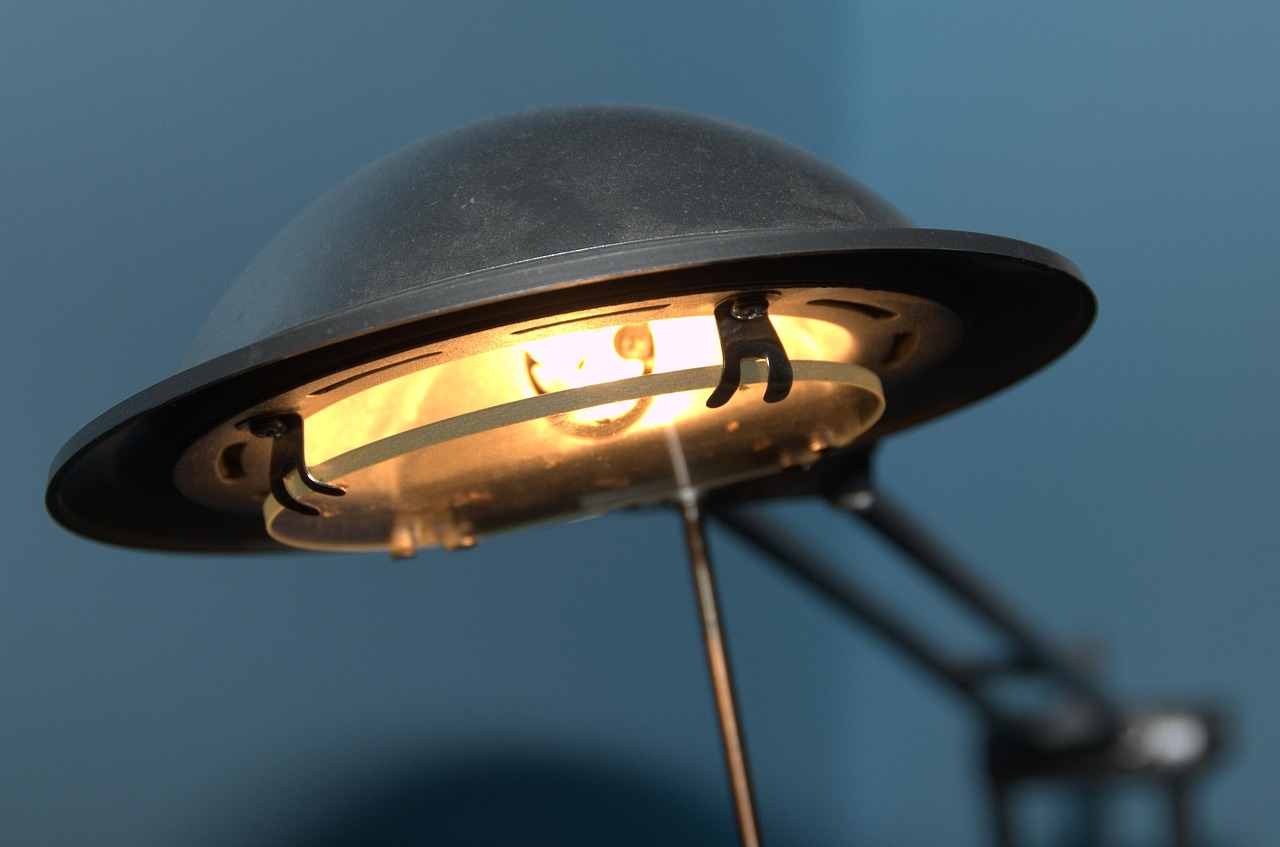
Your desk accessories can also contribute to glare issues. Items like lamps or reflective surfaces can create unwanted reflections on your monitor. Evaluate your workspace to identify potential glare sources.
Consider using desk accessories with matte finishes or non-reflective surfaces to minimize glare. Additionally, positioning lamps or other light sources away from your monitor can help create a more comfortable viewing angle.
Utilize Anti-Glare Screens Wisely
If you’ve assessed your workspace and still find glare to be an issue, an anti-glare screen may be a helpful addition. These screens can reduce reflections and improve visibility, but they should be a secondary solution after optimizing your environment.
When using an anti-glare filter, ensure it is compatible with your monitor and does not distort the display quality. This way, you maintain the best possible viewing experience while minimizing glare.
Regularly Clean Your Monitor
A clean monitor is essential for maintaining optimal visibility. Dust, fingerprints, and smudges can exacerbate glare issues, making it difficult to see the screen clearly. Regular cleaning can enhance your experience significantly.
Use a microfiber cloth and a gentle cleaning solution to wipe down your monitor. Ensure the screen is dry before turning it back on to avoid any streaks that may contribute to glare.
The short version
To effectively manage glare, start by assessing window placement and monitor panel types. Utilize monitor light bars, adjust your monitor’s angle, and consider window treatments to control light. Organize desk accessories thoughtfully and maintain a clean monitor. If glare persists, an anti-glare screen can be a useful addition to your workspace.
Consider Window Position and Panel Finish for Optimal Viewing
When setting up your workspace, the position of windows can significantly affect screen glare. Ideally, avoid placing your monitor directly in front of a window to minimize reflections. If relocation isn’t possible, adjusting the angle of your monitor arm can help. Additionally, choosing between matte and glossy panel finishes can further control glare, with matte screens generally offering better anti-reflective properties.
Incorporating monitor light bars can also enhance your viewing experience. These devices help illuminate your workspace without contributing to screen glare. Positioning a light bar above or behind your monitor can provide sufficient ambient light, ensuring that your screen remains the focal point without distractions from external light sources. Balancing window position, panel type, and lighting can create a more productive environment.
Where to go next
Everything discussed here lives in Desk Accessories. If you are weighing two options and cannot decide, the answers page covers the questions we get asked most, and a message reaches the people who pack the orders.
From that section
- monTEK Single Monitor Arm, 17-32" Screen, Full Motion Adjustment
- Acrylic Monitor Memo Board Holder, 15"x7.9" Sticky Note Holder
- 3-Pack Monitor Connector Alignment Clips with Adhesive